HD Camera
HD CameraPhotography
4.64.39K Reviews
- Version
- 1.4.14
- Installs
- 100.00M
- Age Rating
- Everyone
Screenshots
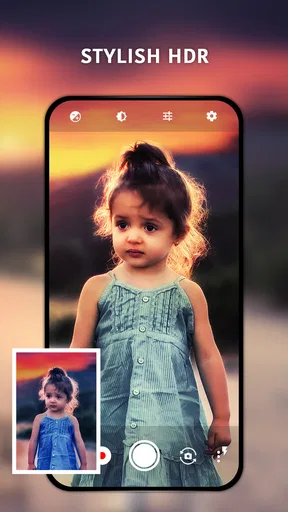
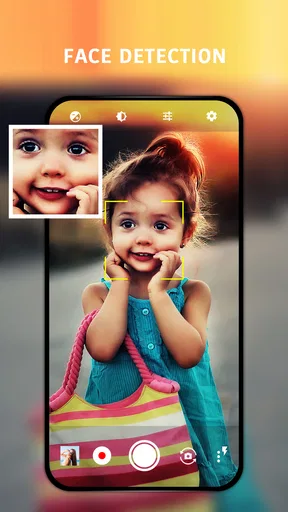
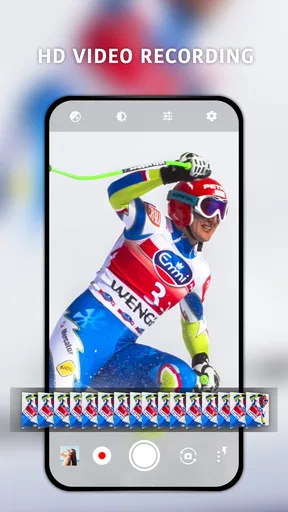
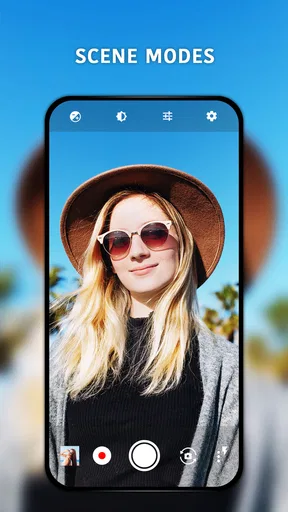

Our Review of HD Camera
 Analysis by Appyee
I reach for HD Camera when I want a camera app that feels straightforward but gives me a little more room to shape a shot. It’s a free photography app from HD Camera, and its appeal is easy to understand: open it, frame a scene, and make a few adjustments without turning a casual photo into a technical project. I see it as a practical alternative to relying only on a phone’s standard camera, especially when I want to make a quick creative choice before pressing the shutter.
What I expect from the pace
A camera app needs to feel ready at the moment I need it, and HD Camera is most useful when I can move from opening the camera to composing a picture without fuss. The interface feels approachable, so I don’t have to spend a long time learning where to begin. In my experience, that kind of simplicity matters more than a long list of controls when a moment is passing quickly.
The app’s average rating is 4.6 from around 412,000 ratings, and it has passed 100 million installs. Those figures suggest broad interest, but they don’t guarantee the same speed on every phone. Camera response depends on the device as well as the app, so I’d judge it by how promptly it opens, focuses, and saves on the phone I actually use.
One practical habit is to decide on the framing and exposure before taking a burst of pictures. That keeps the process deliberate and makes the real-time adjustments more useful: I can settle the look first, then take the shot, rather than trying to rescue every image afterward. For a quick photo of a meal, a market stall, or a view from a train window, this is a better fit than stopping to work through a complicated camera setup.
Using the camera in everyday situations
I use this section to focus on the small choices that make a casual photo more deliberate, rather than treating every snapshot like a project. Thinking about light, framing, and when to pause for a quick check can help you decide whether HD Camera’s extra adjustments fit your routine before we look at where those controls are most useful.
Where the extra controls help
Ever wished your smartphone could capture those breathtaking sunsets just as beautifully as you see them with your eyes? Let me introduce you to the HD Camera app. This nifty app has quickly become my go-to for snapping stunning photos, and I’m pretty sure it’ll win you over too!
First Impressions
From the moment you open the app, it’s like stepping into a whole new world of photography. The interface is sleek and user-friendly, making it super easy to navigate even if you're not a tech wizard. I was up and running in no time, snapping away and exploring the various features.
Features Galore
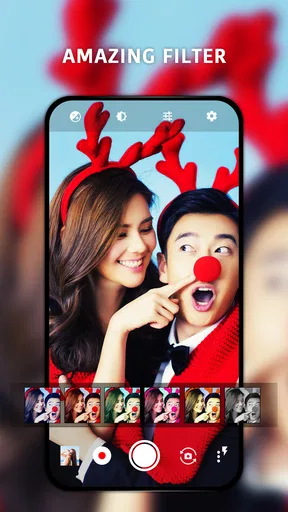
Now, let’s dive into the juicy details that make this app a standout. One of the first things I noticed was the range of filters and effects. There’s something for everyone here, whether you’re into vintage vibes or high-contrast modern looks. I spent a good chunk of time just playing around with these, and let me tell you, the results were impressive.
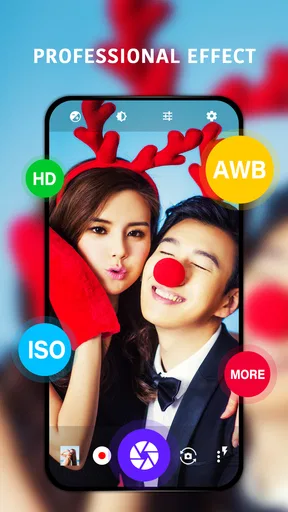
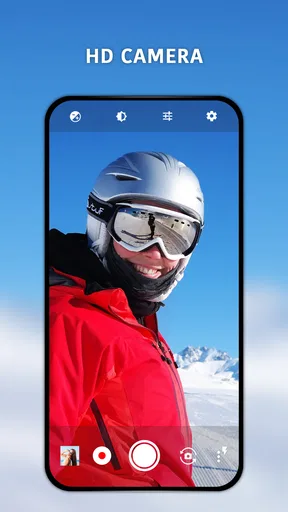
Another neat feature is the real-time adjustment settings. You can tweak the exposure, contrast, and saturation as you line up your shot. It’s like having a mini photo studio right in your pocket. I found this especially useful for those tricky lighting situations where you want to capture the perfect mood.
A useful way to work with those controls is to treat them as small corrections, not a replacement for good light. If a bright window is washing out a subject, I’d adjust the exposure while framing rather than applying a dramatic look afterward. For a colorful plate of food, a restrained saturation change can preserve a believable result. The trade-off is that a stronger effect may look fun on screen but less natural when you view the photo later, so I prefer to make one adjustment at a time and check the composition before committing.
That approach also helps when photographing objects for a message or listing. I’d first clear the background, move the subject near even light, and use the preview adjustments to keep its color recognizable. The app can help shape the capture, but it can’t remove distracting objects or create better lighting; those small choices still make a bigger difference than piling on effects.
Heavy-use moments
When it comes to performance, the app doesn’t disappoint. The app is fast and responsive, with no noticeable lag when capturing high-resolution images. This is a big win for someone like me, who tends to be a bit trigger-happy when it comes to photography. The last thing you want is a delay when trying to capture the perfect moment.
The autofocus is another feature where this app shines. It’s quick and accurate, ensuring your shots are crisp and clear. I tested this out in various settings—from bustling city streets to serene landscapes—and it consistently delivered sharp images.
For a busy outing, I’d use the camera in short, purposeful bursts: frame a moving subject, let focus settle, take a picture, then review it before repeating. That small pause can save time later because it reveals whether the subject is sharp and whether the lighting needs a correction. If I’m photographing a child, a pet, or a passing street scene, I wouldn’t assume any camera app can freeze every fast movement; good timing and a steady hold still matter.
Longer sessions call for a different expectation. Taking many pictures in a row means the phone is doing more work than it does for a single snapshot, and the overall experience can vary with the device and what else is running. I’d close out of camera use when I’m finished, especially before switching to another demanding task, and make sure the images I care about are visible in the phone’s usual photo library. That is a sensible workflow rather than a promise that every phone will behave identically.
Reliability and recovery
For everyday reliability, I value a camera app that keeps the important steps clear: compose, adjust, capture, and check. If a shot matters, I take a second frame rather than trusting that one attempt will be perfect. This is particularly useful for group pictures, where someone may blink, or panorama attempts, where a small movement can affect the result.
If the app feels slow or stops responding, I’d first give the phone a moment, then reopen the camera and check whether the image was saved in the photo library. I would avoid repeatedly tapping the shutter while the phone is busy, since that can make it harder to tell which capture succeeded. For a once-in-a-lifetime moment, a second camera option—such as the phone’s built-in camera—is a sensible backup. HD Camera’s extra controls are useful, but no app should be the only plan for an unrepeatable shot.
The app is free and rated for Everyone, making it approachable for casual household use as well as personal photography. Its current version is 1.4.12, and it first appeared on April 10, 2018. It supports Android 4.4 and later, which gives it a wide potential device range, though older phones may not feel as responsive as newer ones. HD Camera is an Android app, so iPhone users should look to the camera options available for iOS rather than expect this app to run on their device.
Panoramas, timers, and the right alternative
One of the perks that I absolutely adore is the panorama mode. It’s incredibly intuitive, and the results are seamless. I used this feature on a recent hike, and the sweeping views I captured were nothing short of spectacular. It’s perfect for those epic landscape shots that just don’t fit in a standard frame.
For a better panorama, I’d stand in a stable spot, choose a clear starting point, and turn smoothly instead of swinging the phone quickly. It’s tempting to include the whole horizon, but a narrower sweep can be more useful when the scene has moving people or vehicles. The mode is best for a broad, relatively steady view; for a fast-changing scene, several ordinary photos may be easier to manage and select afterward.
There’s also a handy timer function, which I found great for group shots or selfies. No more awkward arm stretches trying to fit everyone in the frame! Just set the timer, strike a pose, and let the app do the rest.
In a real weekend scenario, I might use the timer to set up a family photo at a picnic: place the phone securely, check that everyone fits, and take a test frame before calling everyone over. That last check avoids discovering afterward that the background dominates or someone is at the edge of the shot. For a quick selfie, the timer is a convenience; for a carefully staged portrait, a dedicated camera app with more advanced control may suit someone who wants to spend longer adjusting the image.
Compared with the phone’s built-in camera, HD Camera’s appeal is the chance to adjust the look at capture time and use tools such as panoramas and a timer in one camera-focused experience. The default camera may still be the better choice if it launches more reliably on a particular phone or is already tuned to that device’s hardware. Editing apps are better when the main goal is to transform a photo after taking it, while this app is more relevant when I want to make choices as I compose.
I’d recommend it to someone who takes casual photos, enjoys trying different looks, and wants exposure and color adjustments close at hand. I’d be less inclined to recommend it to a photographer who needs a specific professional workflow, extensive manual controls, or guaranteed performance during a critical event. In those cases, I’d compare it with the phone’s native camera and a more specialized camera app before settling on one.
Device constraints and my verdict
Because this is a camera app, the phone itself shapes the result: lens quality, focus behavior, available light, and the device’s processing all matter. The minimum Android requirement is 4.4, but meeting that requirement does not mean every supported phone will offer the same speed or image quality. On an older device, I’d keep expectations modest, avoid unnecessary background activity during a long photo session, and check images as I go rather than waiting until the end.
So, what’s the verdict on the app? In my opinion, it’s a fantastic app for anyone looking to elevate their photography game. Whether you’re a seasoned pro or just starting out, it offers a wealth of features that cater to all skill levels. Plus, it’s free, which is always a bonus in my book!
If you’re passionate about capturing life’s moments in vivid detail, give this app a shot. You might just find it becomes a staple in your photography arsenal, just like it did in mine. Happy snapping!
Verdict
Strengths of HD Camera
- High-resolution images with clarity.
- User-friendly interface for easy navigation.
- Multiple shooting modes available.
- Excellent manual controls for pros.
- Quick editing tools integrated.
Limitations of HD Camera
- Consumes significant battery power.
- Limited free storage options.
- Ads can be intrusive during use.
- Lacks advanced professional features.
- Occasional lag on older devices.
Similar Picks in This Category
View All
Google Photos
Google LLC4.4

Gallery
Google LLC4.2

Picsart AI Photo Editor, Video
PicsArt, Inc.3.9

B612 AI Photo&Video Editor
SNOW Corporation4.1

BeautyPlus-Selfie Photo Editor
PIXOCIAL TECHNOLOGY (SINGAPORE) PTE. LTD.4.5

Remini - AI Photo Enhancer
Bending Spoons4.1
Frequently Asked Questions
What features does HD Camera offer?
The HD Camera app provides a range of features designed to enhance your photography experience. These include high-resolution image capture, various shooting modes, advanced filters, and manual controls for focus, exposure, and white balance. Users can also enjoy a user-friendly interface, making it easy to switch between modes and adjust settings quickly.
Is HD Camera compatible with all Android and iOS devices?
HD Camera is designed to be compatible with a wide range of Android and iOS devices. However, performance and availability may vary depending on the device model and operating system version. It's recommended to check the app's compatibility on your device's app store page to ensure it functions optimally.
Does HD Camera require an internet connection to function?
No, HD Camera does not require an internet connection to capture photos and videos. All core functionalities, such as shooting modes and manual adjustments, work offline. However, an internet connection may be necessary for updates, in-app purchases, or sharing content directly to social media platforms.
Are there any in-app purchases or advertisements in HD Camera?
HD Camera offers a free version with essential features available to all users. However, it may include advertisements. To unlock additional features and remove ads, users can opt for in-app purchases or a premium version. This ensures an enhanced experience with more advanced tools and an ad-free interface.
How does HD Camera ensure user privacy and data security?
HD Camera is committed to maintaining user privacy and data security. The app does not store or share personal data without consent. Photos and videos captured remain on the user's device unless explicitly shared. Users are encouraged to review the app's privacy policy for detailed information on data handling and security measures.
